Home / Tools / Contracts Register Builder
Guided tool · PST-T1 · Public sector
Build your own contracts management system.
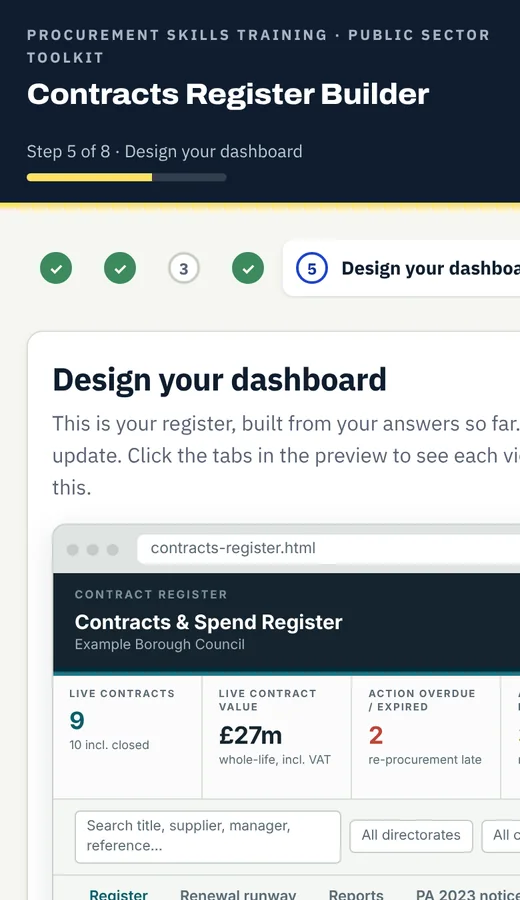
No developer and no IT project. A step-by-step walkthrough for UK public bodies: answer questions about your organisation, design your dashboard and watch it take shape, then get precise instructions that make Copilot, ChatGPT or Claude build it for you: a bespoke contracts and spend register with renewal warnings and Procurement Act 2023 notice tracking.
- One-off payment
- No coding
- Works with Microsoft 365 Copilot
- Your data stays with you
The builder, plus a ready-made register, CSV template and sample data in case you need them.
Contract management software can cost thousands a year and needs a procurement exercise of its own. This needs a £9.99 card payment.
Sound familiar?
Your contracts register should warn you. A spreadsheet never does.
Most public bodies run their register on a spreadsheet that grew by accident. Proper contract management software is expensive and slow to buy. AI can now build the tool you need, if you know exactly what to ask for. The builder knows.
We only found out it had expired when the invoices stopped.
Renewal warnings built in. Every contract gets an action-by date based on its value, so re-procurement starts in time.
I asked Copilot to build one and got something half-finished.
Instructions that leave nothing to guess. Your answers become a complete specification, so the AI builds exactly what you designed rather than its own idea of a register.
IT and information governance will never sign it off.
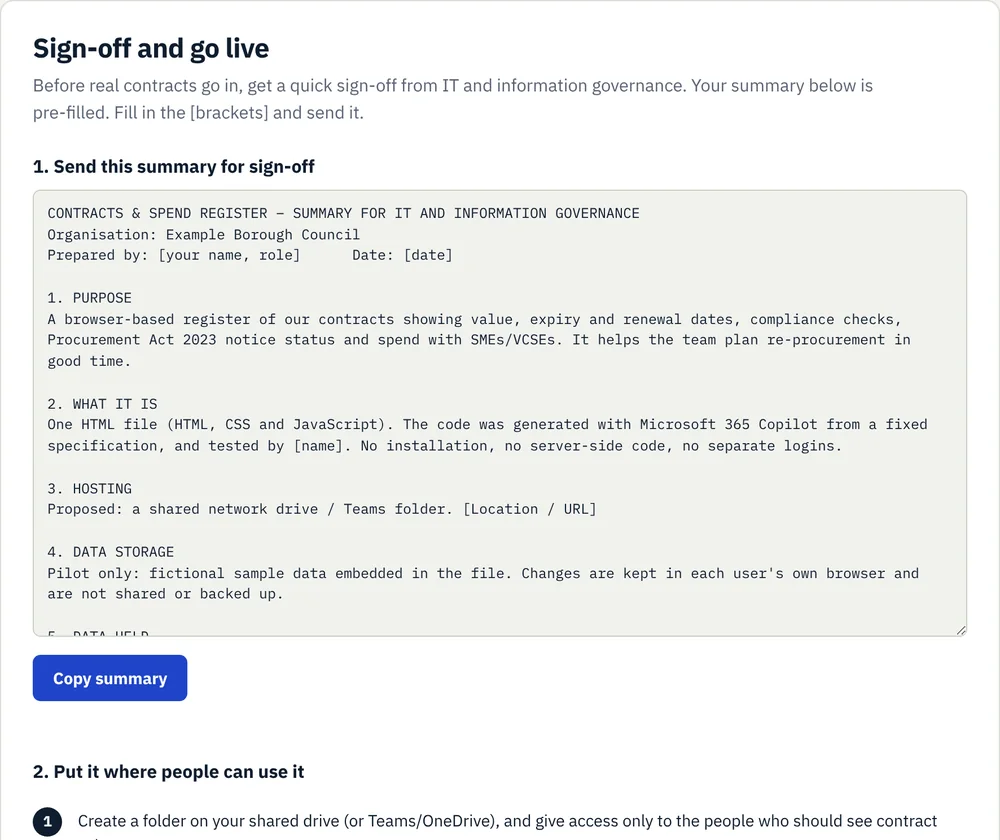
Sign-off made easy. You get a pre-filled summary for IT and information governance, explaining what the tool is, where data is kept and who can see it.
The walkthrough
Eight steps from blank page to a register your team uses
Each step asks a few plain-English questions. Your answers are saved as you go, so you can stop and come back, and change any of them later and rebuild.
- 01
Before you start
See the kind of dashboard you'll build, and check your organisation's AI policy.
- 02
Your organisation
Your name, how you're divided up, your e-tendering system and what your procurement rules are called.
- 03
Spend categories
Start from a local authority, NHS, education or housing association list, then edit it.
- 04
How it will work
Who can edit, and where the data lives: a pilot, a CSV on a shared drive, or a SharePoint list.
- 05
Design your dashboard
Choose the views and extra information, and watch a live preview of your register update.
- 06
Get your instructions
A complete build specification, tailored to Copilot, ChatGPT or Claude, with exactly what to paste and type.
- 07
Save and check
How to save the file, then 18 checks to prove it works, and fix messages if something doesn't.
- 08
Sign-off and go live
A summary for IT and information governance, go-live steps, and how to keep it healthy.
Inside the builder
Bespoke to your organisation, without the bespoke price
The register is built around your structure, your categories and your rules, so it looks and works like it was made for you. Because it was.
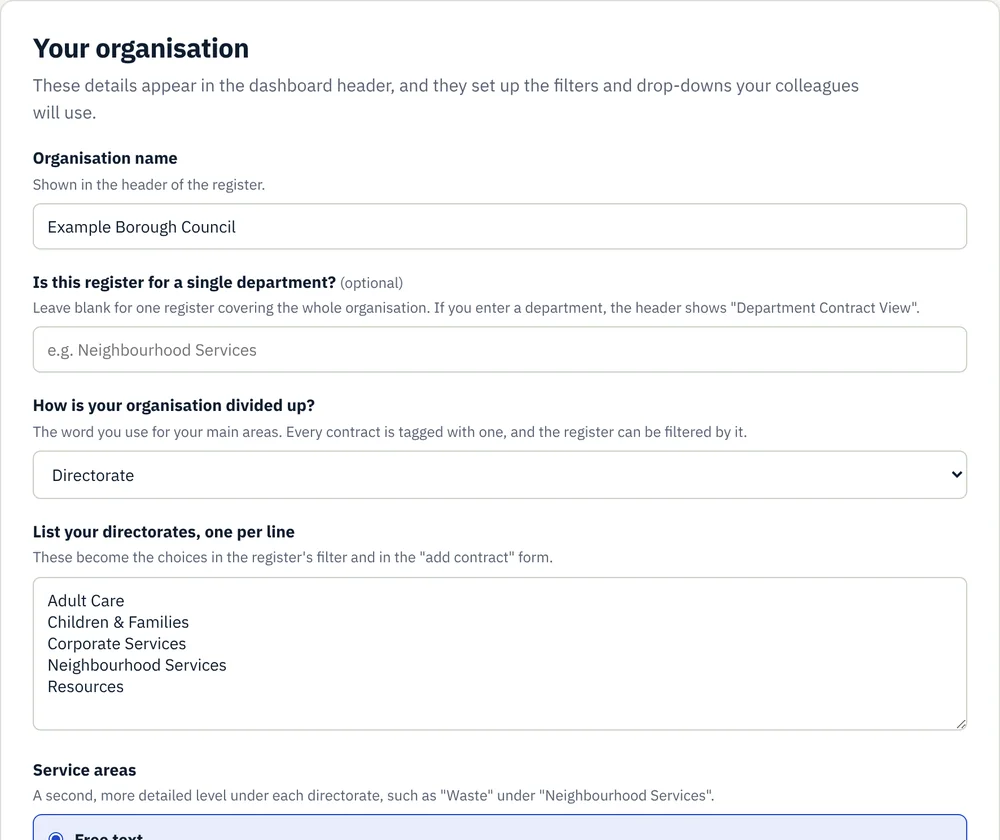
Your structure, your words, your rules
Directorates, departments or divisions; service areas as free text or a fixed list; your e-tendering reference and the name of your contract procedure rules. These become the filters, drop-downs and compliance checks your colleagues use every day.
- Category lists for councils, the NHS, education and housing associations
- Start as a pilot, then switch to a CSV or SharePoint list and rebuild
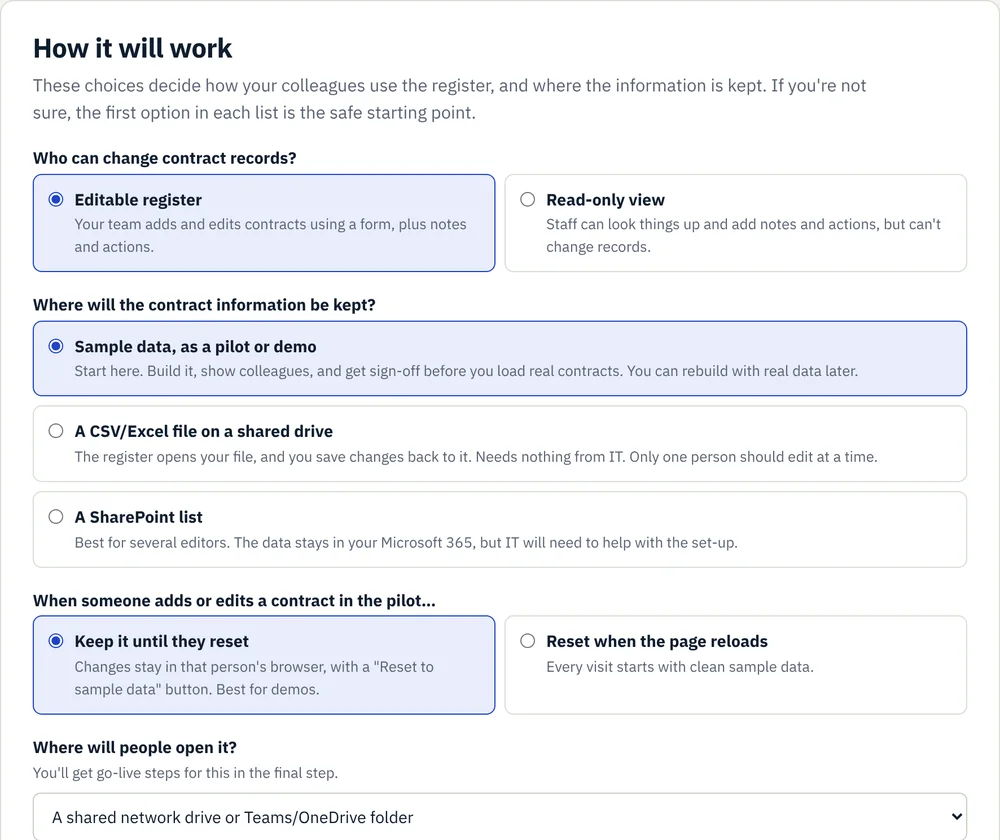
Decide where the data lives, safely
Choose who can change records and where contract information is kept. The builder explains each option in plain English, with the safe starting point first, so you don't create something IT will block.
- Pilot with sample data, a CSV on a shared drive, or a SharePoint list
- Go-live steps for wherever people will open it
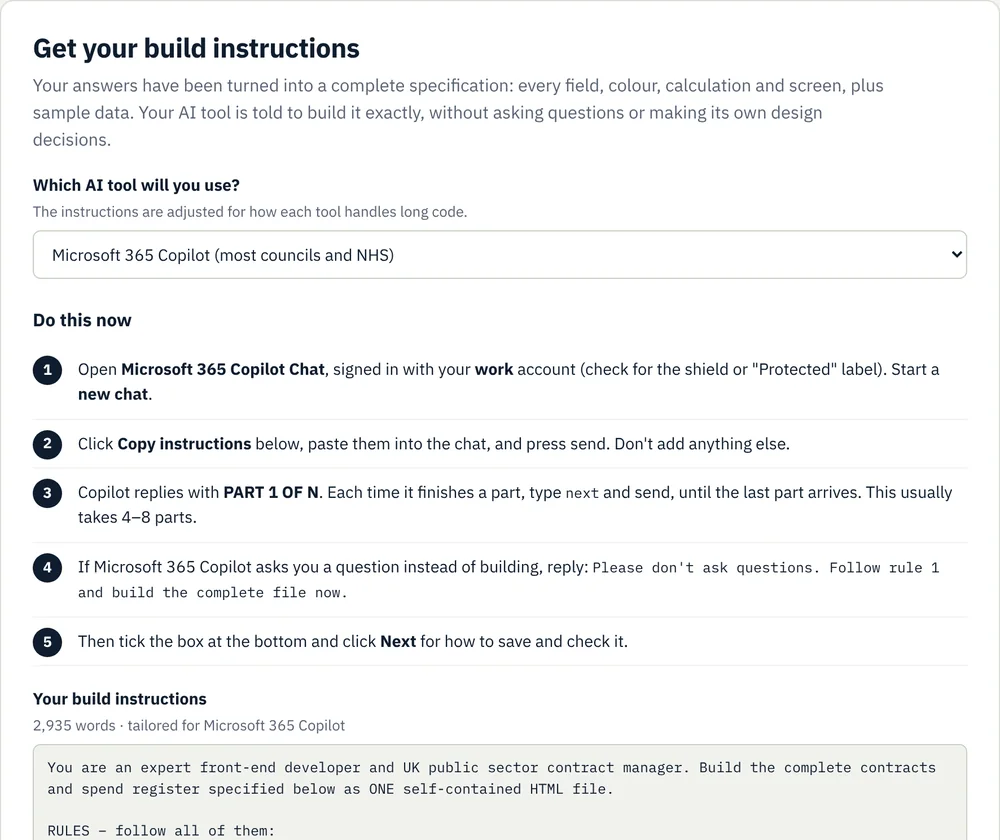
Instructions your AI tool can't misread
Your answers become a complete specification: every field, colour, calculation and screen, plus sample data. Pick your AI tool and the instructions adjust for how it handles long code, with step-by-step guidance on what to paste and what to type.
- Microsoft 365 Copilot, ChatGPT or Claude
- Procurement Act 2023 notices and PCR 2015 contracts handled correctly
Prove it works before anyone relies on it
Clear steps to save the file, then 18 checks covering statuses, filters, sorting, notices, reports, keyboard use and phone screens. If anything fails, copy the matching fix message into your AI tool and it corrects the problem rather than redesigning your register.
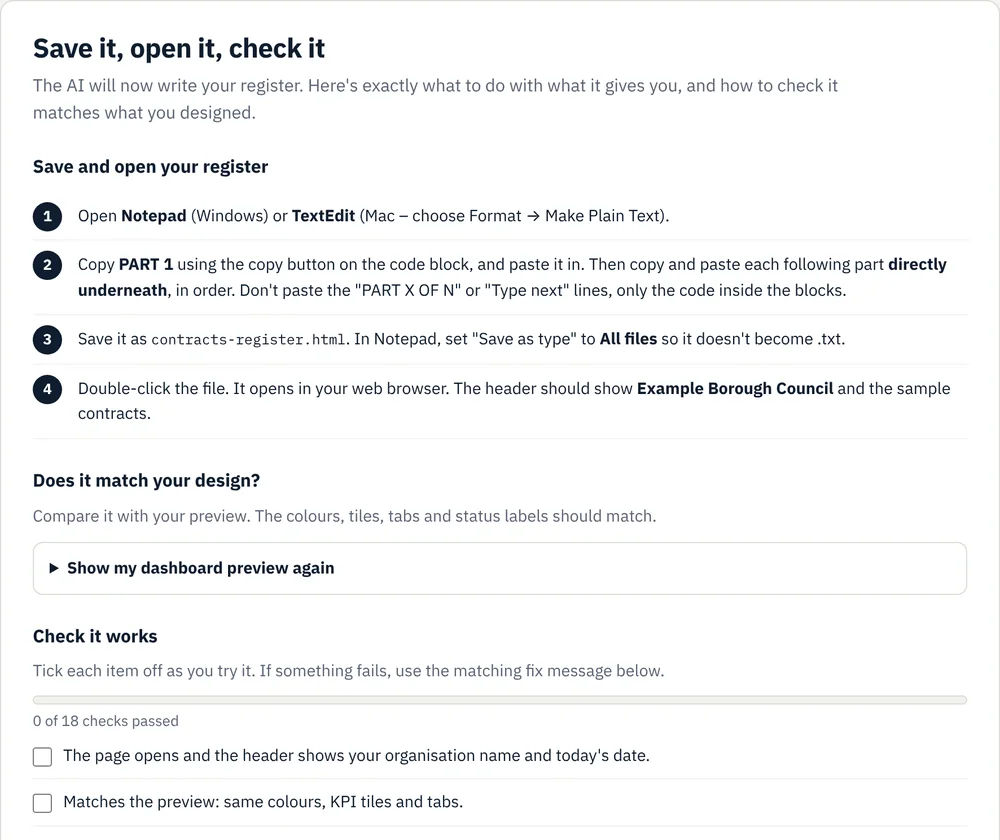
Sign-off from IT and information governance
A pre-filled summary covers purpose, hosting, data storage and access. Fill in the brackets and send it. Then put the register where your team can use it, and follow the routine that keeps it healthy.
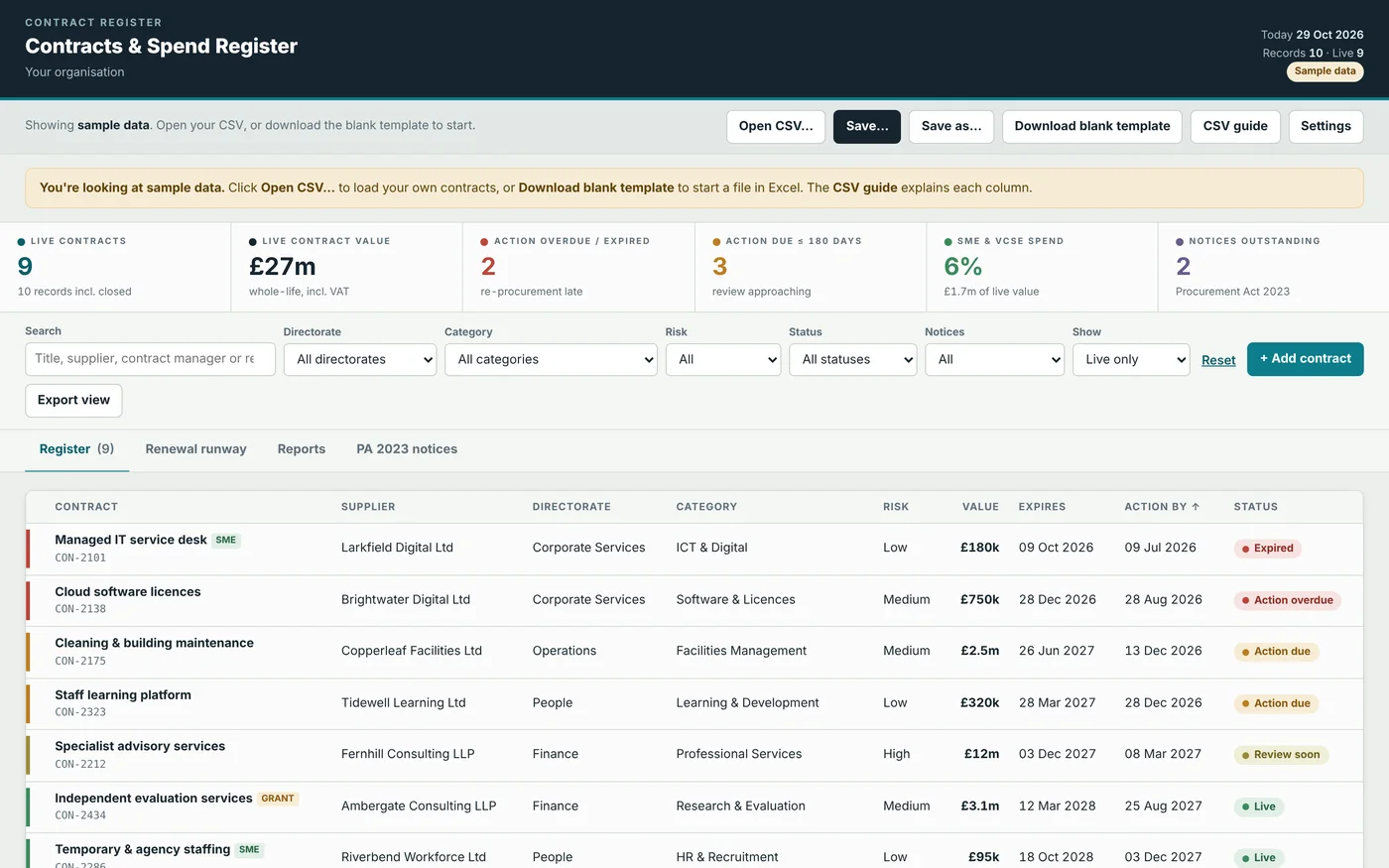
Included
AI tool not playing ball? A ready-made register is included.
Some organisations block AI tools, or the AI has an off day. So the purchase includes a finished, tested register built to the same design: no AI needed. Open your contracts CSV, and save straight back to it.
- Use it online from your account, or download the file
- Blank CSV template with all 47 columns, plus sample data
Your data
Nothing you enter is sent to us.
The builder runs in your browser, and your answers are saved on your own device. You build with sample data, then load real contracts only once your organisation has signed it off.
What you get
Everything you need to build and run your register
- 01The Contracts Register BuilderThe 8-step walkthrough, in your account. Your answers are saved as you go, and you can come back and rebuild at any time.
- 02Build instructions for your AI toolA complete specification tailored to Microsoft 365 Copilot, ChatGPT or Claude, plus fix messages if anything goes wrong.
- 03A ready-made registerThe same design, already built and tested, for when AI isn't an option.
- 04CSV template and sample dataAll 47 columns ready for Excel, and ten example contracts to test with.
- 05Sign-off summary and go-live guideFor IT and information governance, plus how to keep the register healthy.
What you'll need
- An AI assistant your organisation allows: Microsoft 365 Copilot, ChatGPT or Claude. Or use the ready-made register instead.
- A laptop or desktop with Microsoft Edge or Google Chrome.
- About an hour for your first build. No coding experience.
Questions
Before you buy
Do I need to know how to code?
No. You answer questions in plain English. The builder turns them into instructions, your AI tool writes the code, and the builder tells you exactly how to save it and check it works.
Which AI tools does it work with?
Microsoft 365 Copilot (which most councils and NHS bodies have), ChatGPT and Claude. The instructions adjust for whichever you choose. Use the tool your organisation approves, signed in with your work account. If AI isn't allowed at all, use the ready-made register that's included.
What makes it bespoke?
Your organisation's name, structure, service areas, spend categories, e-tendering reference, procurement rules, views and extra fields all go into the build. You see it in the live preview before you build anything.
Will IT let us use it?
The finished register is a single file with no install and no server code, and you start with sample data. Step 8 gives you a pre-filled summary for IT and information governance, so you can get sign-off before any real contracts go in.
Does it cover the Procurement Act 2023?
Yes. Your register tracks the post-award notices for each contract under the Act and flags the outstanding ones, while contracts let under PCR 2015 are handled separately. It's an aid for keeping track, not legal advice.
Can my whole team use it?
The register you build can be shared with your team in the usual way. Each builder purchase is for one person. For several people building or a guided session, email Tim.
Can I get a refund?
Because you get the builder immediately, you confirm at checkout that you're giving up the 14-day cancellation period. Billing errors and access problems are always put right. See the refund policy.